Cursor AI programming introductory tutorial, 2026 zero-based guide
If you want to learn AI-assisted programming but don't know where to start, Cursor is one of the AI code editors most worth trying for complete beginners right now. Built on top of VS Code's underlying architecture, its interface and operation feel almost zero-learning-cost for anyone who has used VS Code, but its core deeply integrates large-language-model capabilities, turning writing code from "human writes, machine watches" into "human and AI write together." This tutorial starts from installation and breaks down Cursor's core features one by one, helping you understand in the shortest time what it can do, how to use it, and which scenarios it's especially good for.
1. What Is Cursor, and How Does It Relate to VS Code
Cursor is a code editor designed specifically for AI-assisted programming, developed by the Anysphere team. Its foundation is based on VS Code's open-source architecture, so its interface layout, keyboard shortcuts, and extension ecosystem are highly consistent with VS Code. If you've used VS Code before, switching to Cursor requires almost no readjustment—you can even import your settings files and installed extensions directly.
The biggest difference from the original VS Code is that Cursor makes features like AI chat, code completion, and inline editing first-class citizens of the editor, rather than bolting them on through third-party extensions. VS Code also has AI extensions like GitHub Copilot, but Cursor's integration depth is clearly higher—the model can perceive your currently open file, project structure, and even terminal output, so its suggestions and edits fit your actual code context better.
For complete beginners, Cursor's advantage is that it doesn't require you to learn programming before using AI; instead, it lets AI participate in your coding process from day one. You can describe the feature you want to implement in natural language, and Cursor will generate the code and insert it directly into the editor.
2. Download, Install, and Initial Configuration
Cursor's installation process is simple. Go to the official Cursor website and download the installer for your operating system; it supports macOS, Windows, and Linux. After downloading, double-click to install—the whole process is no different from installing an ordinary application.
The first time you launch Cursor, it will guide you through a few steps of initial setup. First is logging in or registering a Cursor account, which is a prerequisite for using AI features. Then it will ask whether you want to import settings from VS Code; if you already have a VS Code configuration, importing is recommended, so your keyboard bindings, theme, and extensions all migrate over directly, saving you the time of reconfiguring.
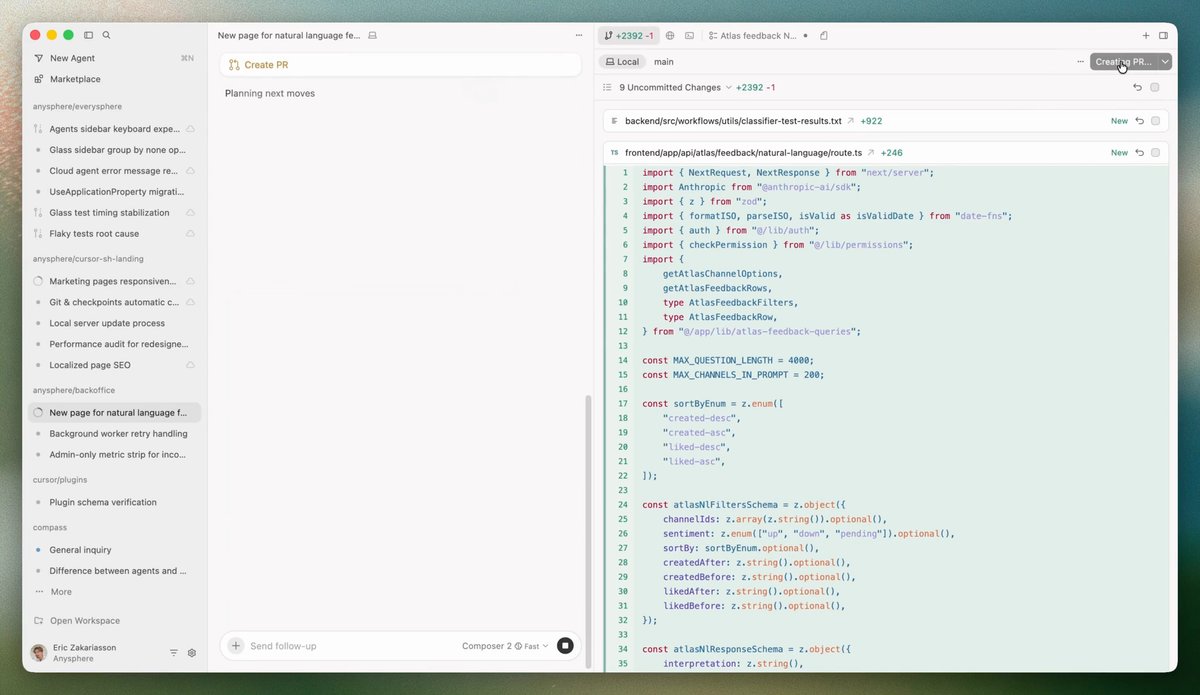
After setup, you'll enter the main interface. On the left is the file explorer, in the middle is the code editing area, at the bottom are the terminal and output panels, and on the right you can open the AI chat panel. The overall layout is identical to VS Code, and all the operations you're used to in VS Code work here.
New users get a certain amount of free usage to first experience the core features. After the free quota runs out, you need to subscribe to a paid plan; refer to the official page for the exact price.
3. Tab Completion: The Most Frequently Used AI Feature
Tab completion is the feature you'll use most often in Cursor, and also the one that requires the least deliberate learning. As you write code in the editor, Cursor predicts in real time what you're about to write, showing it as gray text after the cursor. If the prediction is exactly what you want, press the Tab key to accept it; if not, just keep typing and the prediction will disappear automatically.
How is this stronger than traditional code completion? Traditional completion can only prompt you based on syntax rules and already-imported symbols—for example, you type an object name plus a dot and it lists all the object's methods to choose from. Cursor's Tab completion is based on a large language model; it understands the semantics of your current code and predicts what you intend to write at the business-logic level. For instance, if you're writing a data-processing function, it can guess the complete logic block you're about to write based on the function name, parameter names, and other functions in the context.
Tab completion requires no extra action from you—it runs automatically as you write code. The only thing to note is not to mindlessly press Tab to accept every suggestion; develop the habit of quickly scanning the gray predicted content first, confirming the logic is correct before accepting.
4. Cmd+K Inline Editing: Precise Code Modification
Cmd+K (Ctrl+K on Windows) is Cursor's inline editing feature, suited to making precise modifications to existing code. After selecting a block of code, press Cmd+K and a small input box pops up; describe in natural language how you want to change the code, press Enter, and Cursor generates the modified version right in place, showing the changes as a diff so you can review them line by line and then accept or reject.
This feature's use cases are very broad. For example, if you have a function whose logic is correct but whose naming isn't standard, select the whole function, press Cmd+K, and type "change all variable names to camelCase," and it can batch-rename them for you. Or if you've written a piece of synchronous network-request code and want to make it asynchronous, select it and tell it "change to the async/await asynchronous style," and it will rewrite it for you.
The difference from Tab completion is that Tab completion is real-time assistance while you write new code, whereas Cmd+K is a targeted tool for modifying existing code. Used together, you write new code faster with Tab completion and modify old code precisely with Cmd+K.
There's a trick to using Cmd+K: the more specific your description, the better. A vague instruction like "optimize this code" usually works worse than a specific one like "change this for loop to the map method and add null-value filtering."
5. Chat Panel: Discuss the Whole Project with AI
Pressing Cmd+L (Ctrl+L on Windows) opens Cursor's chat panel on the right. This panel is like having an AI conversation window built into the editor, but it's stronger than ordinary AI chat tools in one respect: it can perceive your entire project context.
You can ask any question related to your project in the chat panel. For example, "Where is this project's entry file?", "Where is this function called?", or "Explain what this regular expression means." Cursor will automatically search your codebase for relevant files and then answer based on the real code, rather than making up a generic answer from training data.
The chat panel also supports referencing specific context with the @ symbol. For example, @filename can reference a specific file, and @codebase can let the model search the entire codebase to answer your question. This way of actively providing context is more precise than letting the model guess on its own, and the answer quality is higher.
For complete beginners, the chat panel is a great study aid. You can import someone else's open-source project into Cursor, then ask in the chat panel one by one, "What does this file do?", "What's the logic of this function?", "If I want to add a new feature, where should I change?"—it's like having a mentor online at all times to help you read code.
6. Composer Mode: Cross-File Batch Operations
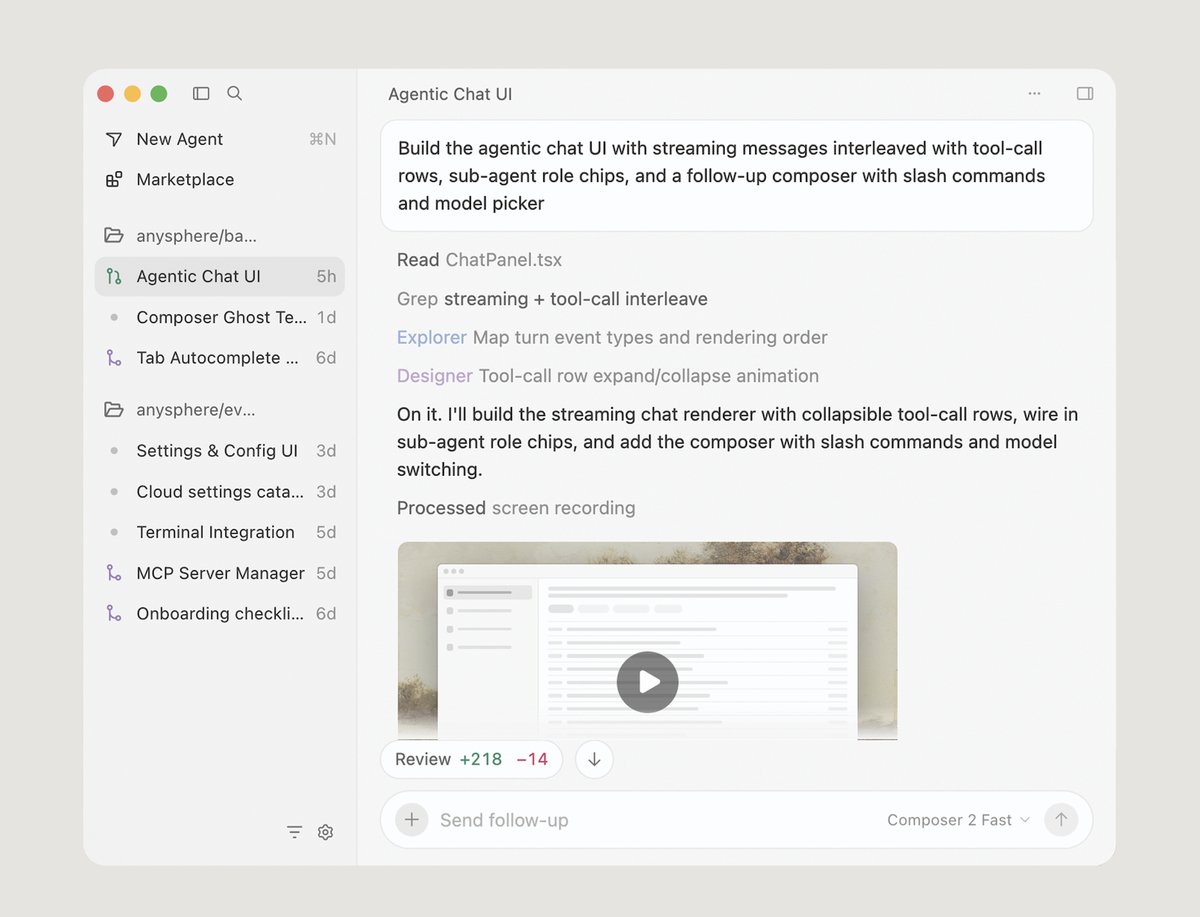
Cursor's Composer feature (sometimes also called Agent mode) is the core tool for handling cross-file tasks. Unlike the chat panel's Q&A, Composer can modify multiple files at once, suited to implementing a complete feature or doing a large-scale refactor.
The way to use it is to switch to Agent mode in the chat panel, then describe in natural language the complete feature you want to implement. For example, "Add a user-login module to this project, including a registration page, a login page, and a backend verification API." Cursor will automatically plan which files need to be created or modified, then generate the code one by one, and you can review each step's changes along the way.
The key to Composer mode is its "autonomous action" ability—it can read files, create new files, run terminal commands, view command output, and then decide the next step based on the results. This lets it handle complex tasks that require multiple steps, such as "run the tests, see which tests failed, then fix the failing tests."
The advice for complete beginners is to first try Composer on small cross-file tasks, such as "add error handling to all API endpoints," to get a feel for how it works, then gradually attempt more complex tasks. Don't immediately have it build a complete project from scratch, because without sufficient context the generation quality may not be ideal.
7. Practical Workflow Tips
Once you've mastered the core features, a few workflow tips can make using Cursor smoother.
The first tip is to make good use of the .cursorrules file. Create this file in the project root and write your coding conventions and special project requirements, such as "this project uses TypeScript strict mode," "all components use the functional style," and "API return values are uniformly wrapped in a Result type." Cursor will reference this file when generating code, and the output will fit your project style better.
The second tip is to start a new session in time. Like all AI tools, Cursor's conversation context keeps accumulating as the session goes on, affecting both response speed and answer quality. After finishing a relatively independent task, start a new chat session before handling the next task—this usually works better than continuing in the same overly long session.
The third tip is to use it together with Git. Before having Cursor make any major modification, commit your current code state first. If Cursor's modifications aren't satisfactory, you can revert to the clean state with git at any time, without worrying about messing things up beyond recovery.
The fourth tip is not to fully trust AI-generated code. The code Cursor generates is reasonable most of the time, but it isn't perfect—it may have logic holes, miss edge conditions, or use outdated APIs. Developing the habit of reviewing code and manually verifying key logic is an essential skill for long-term use of AI coding tools.
8. Cursor's Limitations and Things to Watch Out For
Every tool has its boundaries, and Cursor is no exception.
First is privacy and code security. Cursor's AI features need to send your code snippets to a cloud model for processing. Although Cursor states it won't use user code to train models and provides a privacy-mode option, if your project involves highly sensitive commercial code, you need to confirm with your team whether it's allowed before using it. You can enable privacy mode in Cursor's settings—refer to the official documentation for details.
Second is that there's a ceiling on its ability to handle large projects. When a project's code volume is very large and the number of files is very high, Cursor's context window can't possibly fit all the code. In that case, you need to more actively use @ references to tell it which files to focus on, rather than expecting it to find all the relevant code on its own.
Third is that it can't replace your understanding of the code. Cursor can help you write code, modify code, and explain code, but if you don't understand at all what the generated code is doing, you'll have no ability to troubleshoot when problems arise. The right mindset is to treat Cursor as a colleague who writes very fast but needs your review, not an automaton you can fully delegate to.
Last is network dependency. Cursor's AI features need a network connection to work; offline, it becomes an ordinary VS Code editor. If you often work in environments with unstable networks, this is something to consider in advance.
Frequently Asked Questions (FAQ)
Is Cursor free
Cursor offers a free quota for new users to experience core features, including a certain number of AI completions and conversations. After the free quota runs out, you need to subscribe to a paid plan to keep using AI features. If you don't use the AI features, it can be used for free as a code editor itself, because it's based on the open-source VS Code architecture. Refer to the official website for the exact free quota and paid pricing.
Can I use Cursor if I don't know how to program
You can try, but adjust your expectations. Cursor's AI features can indeed generate code from natural-language descriptions, with a much lower barrier than traditional programming for complete beginners. But without understanding programming at all, you'll find it hard to judge whether the AI-generated code is correct, and you won't know how to troubleshoot errors. It's advisable to spend at least a few days learning the basic syntax and concepts of a programming language, then use Cursor to accelerate the learning process—the effect will be much better.
Can VS Code extensions be used in Cursor
The vast majority of VS Code extensions can be installed and used directly in Cursor, because Cursor is built on the VS Code architecture at its core. The language-support, theme, code-formatting, Git, and other extensions you commonly use in VS Code basically all work normally in Cursor. A few extensions that conflict with the AI features may need manual adjustment, but this is rare.
What's the difference between Cursor and writing code directly with ChatGPT
The biggest difference is context awareness. In ChatGPT you have to manually copy and paste code snippets, tell it what tech stack your project uses, and then paste the generated code back into the editor. In Cursor all these steps are skipped—the AI reads your project files directly, the generated code is written directly into the editor, and the whole flow is seamless. Also, features like Cursor's Tab completion and inline editing don't exist in ChatGPT at all; they make AI assistance a natural extension of the coding process rather than an external tool you have to switch back and forth to.
Which programming languages does Cursor support
As a code editor, Cursor itself supports all the programming languages VS Code can support; by installing the corresponding language extensions you get basic features like syntax highlighting and code completion. On the AI side, Cursor supports mainstream programming languages well, including Python, JavaScript, TypeScript, Go, Rust, Java, and more. The more mainstream the language, the more abundant the model's training data, and usually the higher the quality of the AI-generated code. Support for niche languages is relatively weaker, but the basic code-understanding and generation ability is still usable.
📝 本文来自抖文 www.douwen.me ,转载请保留出处。
原文链接:https://www.douwen.me/archives/1172/
💬 评论 (9)
Solid breakdown, very useful.
Best summary I've read on this.
Step-by-step is gold.
Easy to follow.
Bookmarked for reference.
Thanks for the detailed comparison.
Stats really back it up.
Clear and to the point.
Loved the FAQ section.